Buying a Portable SSD for Photo Backups
Choose a drive that fits your photo library, working habits, and the computer you use to copy files.
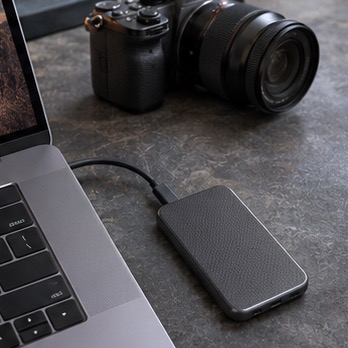
You get home with a camera card full of family photos. The laptop has room for this afternoon’s shoot, but next week the whole cycle starts again. A small external drive is useful when you want to keep current projects close and free up space on the computer.
First decide whether the new drive is for editing in progress, for a backup copy, or for both. If a folder only exists on the external drive, moving it there has freed up room on the laptop without creating a backup. Plan where the second copy will live before you choose capacity.
Count the folders that really need room
Check the size of your current library, including RAW files, exports, and any catalogs or previews you want to keep. Then look at how much space your last few months of photos added. If you shoot more during holidays or events, allow for the busy months.
A portable SSD makes sense if you edit directly from the drive or carry it often. An external hard drive can be the more economical choice for a large backup that mostly stays on a shelf. A two-drive setup can give you a compact workspace drive plus room for older projects at home.
Match the connection to both computers
Check what is included with the drive. A short USB-C cable works well next to a laptop, while an adapter or a second cable may be necessary for an older family computer. Compare the drive’s requirements with the ports you will actually use. The transfer speed on the box depends on the rest of the setup.
Read the formatting requirements before using a new drive across operating systems or with your backup app. If you need to reformat, do it before transferring files. Reformatting erases what is already on the drive.
Make the backup easy to check
Set up separate folders for working files and completed projects. After a copy, open a few photos from the destination and make sure your catalog can find them. Keep an additional copy independent of the laptop and its everyday drive, especially for photos you could never take again.
When comparing drives, prioritize capacity you can afford to duplicate and a cable you can replace easily. High claimed transfer speeds are most useful if you spend noticeable time waiting for large transfers now.
Related guides
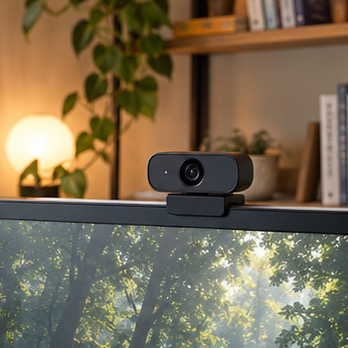
Which Webcam Upgrades Help in a Dim Room?
For evening calls, a camera you can position well and a softer light usually matter more than the largest resolution printed on the box.
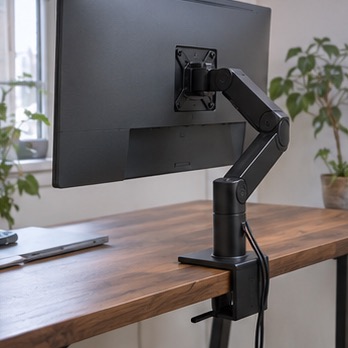
Will a Monitor Arm Give You More Desk Space?
A good arm frees the surface below the display. The clamp, screen weight, and space behind the desk tell you whether it will work.
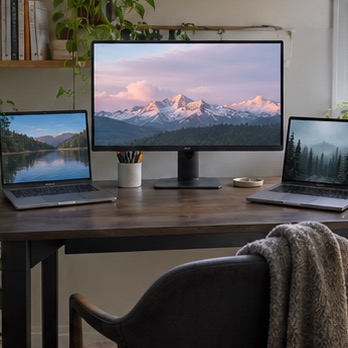
Sharing One Monitor Between a Work Laptop and a Home Laptop
You can keep two computers on one desk with a video input toggle, a USB switch, or a full KVM. The right choice depends on what you swap.