What a One-Cable Laptop Dock Actually Needs to Do
A dock can turn a laptop into a practical desktop setup. Check the display combination, charging output, and the ports you use together before you shop.
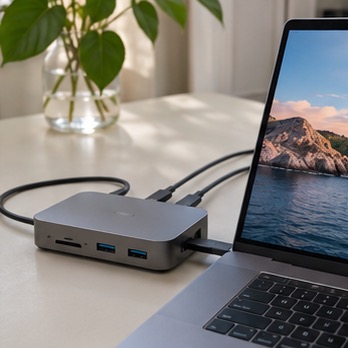
A dock earns its place when you carry the same laptop out in the morning and plug it into a monitor, a webcam, and a keyboard later in the day. If the display needs another cable or the battery quietly loses charge while you work, the convenience goes away quickly.
Start by writing down everything you typically use at the same time. Include the monitor resolution and refresh rate, peripherals, wired network if needed, and the original charger’s rated output as a reference. This gives you a specification you can compare against a dock’s manual.
Read the combinations the dock supports
A dock listing two display ports might support a lower resolution or refresh rate when both are in use. Find the combination table and match it to how you work. A laptop that only supports one native external display will still have that limit with an ordinary native-video dock. Check your exact model and operating system.
Some docks use a software-driven display adapter. Check whether you can install its driver and whether the manufacturer documents compatibility with the apps you need. If this is a managed work laptop, ask your IT team before paying for a dock that depends on the driver.
Find the power available to the laptop
When a hub advertises charging input, find the separate maximum it passes to the computer. A powered dock usually includes its own adapter, which helps if the laptop charger needs to stay in your bag. A pass-through hub is smaller and may use the charger that came with the laptop.
Check the host cable too. A familiar USB-C connector can be used for very different capabilities. If you plan to route a longer cable behind the desk, use a cable the dock vendor specifies for the display and power combination you need.
Buy for the setup you already have
A compact hub can be enough for one monitor, a mouse receiver, and the occasional flash drive. A powered desktop dock makes sense when your usual setup includes a display, Ethernet, an external drive, and charging.
During the return window, use your full setup for a normal work session. Try a video call while a drive is connected, then put the laptop to sleep and wake it. Those everyday checks can reveal problems that are easy to miss when testing each port by itself.
Further reading
Related guides
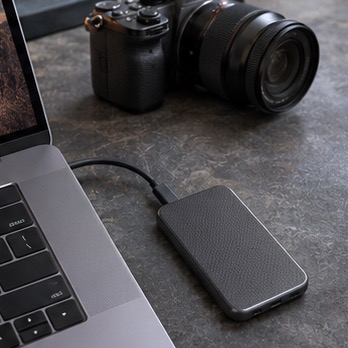
Buying a Portable SSD for Photo Backups
Choose a drive that fits your photo library, working habits, and the computer you use to copy files.
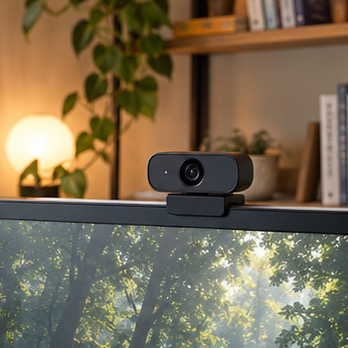
Which Webcam Upgrades Help in a Dim Room?
For evening calls, a camera you can position well and a softer light usually matter more than the largest resolution printed on the box.
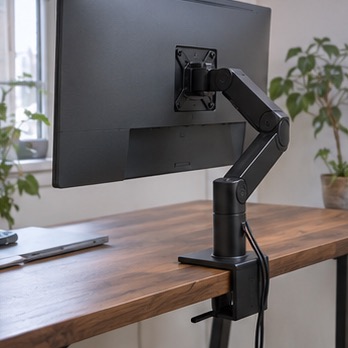
Will a Monitor Arm Give You More Desk Space?
A good arm frees the surface below the display. The clamp, screen weight, and space behind the desk tell you whether it will work.