One keyboard for a work laptop and a personal computer
Compare multi-device pairing with a USB switch, and make sure the setup fits both operating systems.
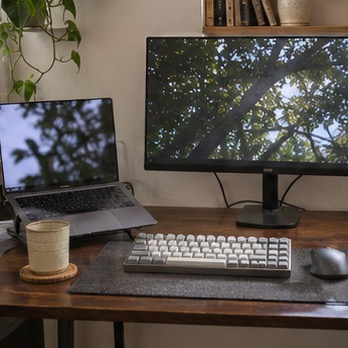
At five, you close the work calendar on your laptop and turn to a personal computer connected to the same monitor. The screen moves with a tap, but the keyboard stays with the machine you just signed out of. If this happens every day, a keyboard that can change devices without re-pairing is worth a closer look.
There are two useful routes. A multi-device board remembers more than one connection, while a USB switch moves an attached wired keyboard from one host to another. Which route is better depends on what your employer's laptop allows and whether you want your keyboard and mouse to travel together.
Find the channel controls
Read the manual's pairing diagram rather than relying on a wireless badge. Look for distinct saved channels and an indicator you can see from where you sit. Check what each channel can connect to. Some products mix Bluetooth and a compatible receiver, and a wired cable can be a separate mode. A USB-C socket may provide charging only on a particular model, so check whether the instructions explicitly describe typing over the cable.
If your work machine restricts Bluetooth or blocks driver installation, ask IT what it supports before choosing a keyboard around the feature. For some desks a simple physical USB switch offers the same daily convenience, provided both computers accept the attached devices.
Check shortcuts before ordering
Mac and Windows use different modifier names and often put different shortcuts under the function row. Check whether the operating-system mode changes automatically by channel or uses a separate physical toggle. Dual-marked keycaps help while you get used to the change. If you have a work routine built around function keys, read the instructions for switching between function and media actions.
Set up a repeatable handoff
Pair the computers in a stable order and label each channel in a note near the monitor. Test switching after both computers have slept, then try your most common shortcuts on each one. Check how your mouse follows along. A keyboard channel key may change only the keyboard, while a compatible USB switch can move both a wired keyboard and a wired mouse at once.
Further reading
Related guides
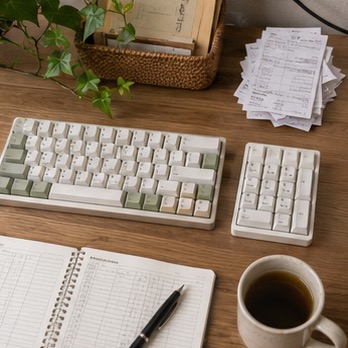
Do you need a full-size keyboard or a separate numpad?
A detachable number pad can reclaim mouse space, while a full-size board suits a desk built around frequent number entry.
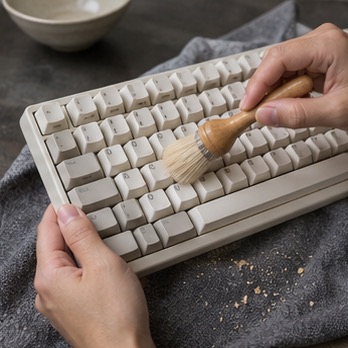
Clean your keyboard before you replace it
Start with a brush and a lint-free cloth. Save bigger purchases for the parts that are actually worn.
A practical first keyboard remap
Move one awkward shortcut, learn where the setting lives and avoid paying for more programmable keys than you need.